
AI Document Analysis: How to Analyze Documents With AI

AI document analysis uses artificial intelligence to help you understand and work with files such as PDFs, research papers, and reports. You can summarize a document, ask questions about its contents, explain difficult passages, identify important details, and organize findings for further work. The best workflow starts with a clear question and checks important answers against the original file.
In Luminary, you can upload a PDF, keep the original pages open beside your conversation, and ask questions about what you’re reading. Select a passage for Quick meaning or Analyze, explore related explanations, sources, videos, and concepts, and use your findings for writing or file creation.
Even a short research paper can take hours to understand when every other paragraph introduces a new technical term. A lengthy business report presents a different problem: you may understand the writing but still need to find the important numbers, compare claims, and explain what they mean.
AI document analysis can help with both. Instead of reading a file from start to finish and hoping you remember everything, you can ask focused questions, examine specific passages, and organize what you find. But a convincing answer isn't necessarily a correct one. The most useful approach keeps the original document within reach so you can check the evidence.
This guide covers what AI document analysis can help you do, then shows you how to analyze a PDF in Luminary, step by step. We’ll use the nine-page Bitcoin whitepaper so you can follow the same process with your own report, research paper, or document.
What Is AI Document Analysis?
AI document analysis means using AI to find, explain, compare, or organize information contained in a document. It goes beyond producing a shorter version of the text.
For example, an ordinary summary of a financial report might identify its main themes. An analysis might answer which expense category changed the most, where the figures appear, and whether the report explains the change.
Three related tasks are worth distinguishing:
| Task | What you ask for | Useful output |
|---|---|---|
| Summarization | What does this document say? | Main points, sections, and conclusions |
| Analysis | What does it mean, and how do the parts relate? | Explanations, comparisons, findings, and unanswered questions |
| Extraction | Which specific facts or fields do I need? | Dates, figures, names, or tables to review or export |
An AI document analyzer may support all three, but that doesn't mean it can always interpret complex tables, scanned pages, or diagrams perfectly. For those files, check what the service can actually read and whether optical character recognition (OCR) is needed.
What Can You Analyze With AI?
The value depends on the document and the question you bring to it.
- Research papers and whitepapers: Understand the central argument, explain technical terms, follow the proposed method, and identify limitations.
- Business and annual reports: Find notable figures, compare sections, and turn the findings into a briefing.
- Contracts and policies: Locate clauses, deadlines, and obligations for closer review. AI can assist with reading, but shouldn't replace qualified legal judgment.
- Product documentation: Explain unfamiliar concepts, compare specifications, and locate instructions or requirements.
- Training materials and long PDFs: Create a section-by-section overview, ask follow-up questions, and review confusing passages.
For each case, start with the original file and a question specific enough that you can judge whether the answer is useful.
How to Analyze a Document With AI in Luminary: Step by Step
Here’s how to go from uploading a document to understanding its important passages in Luminary.
To make the steps easy to follow, we’ll use Bitcoin: A Peer-to-Peer Electronic Cash System, a nine-page PDF with several technical concepts. You can use the same approach with your own document.
Step 1: Upload the Document and Explain Your Goal
Open Luminary, select the + next to the message box, and attach your PDF. Then explain what you want to understand instead of typing only “analyze this PDF.” Include the depth you need, and any specific questions you have.
To follow along, you can download the Bitcoin whitepaper, save it as bitcoin.pdf, and upload it. Start by asking Luminary for a beginner-friendly explanation of the paper’s purpose and major ideas.
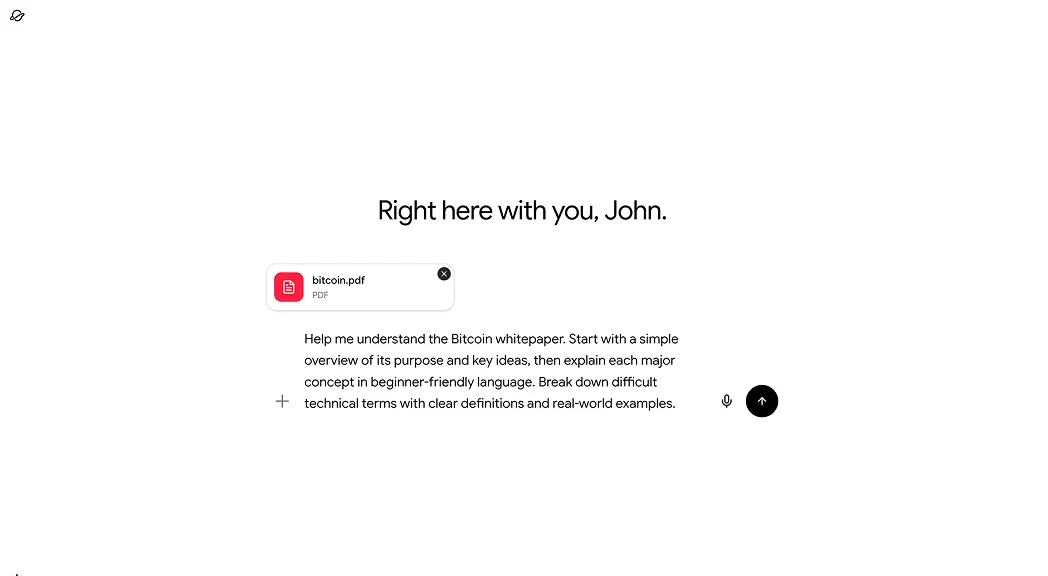
Prompt to try:
Help me understand the Bitcoin whitepaper. Start with a simple overview of its purpose and key ideas, then explain each major concept in beginner-friendly language. Break down difficult technical terms with clear definitions and real-world examples.
Why this works: Luminary knows you want an accessible explanation, not just a short summary. For a business report or research paper, replace the subject and describe your specific question or desired output.
Step 2: Keep the Original PDF Open as You Read the Answer
Once you send the prompt, follow the response while keeping your original PDF open in the document panel. Luminary displays the conversation and the file side by side, so you can read a claim and check the page it comes from.
Use the document’s page navigation and zoom controls to inspect the source. You’ll also see small bitcoin.pdf source chips beside parts of the answer. Use them as pointers back to the uploaded material.
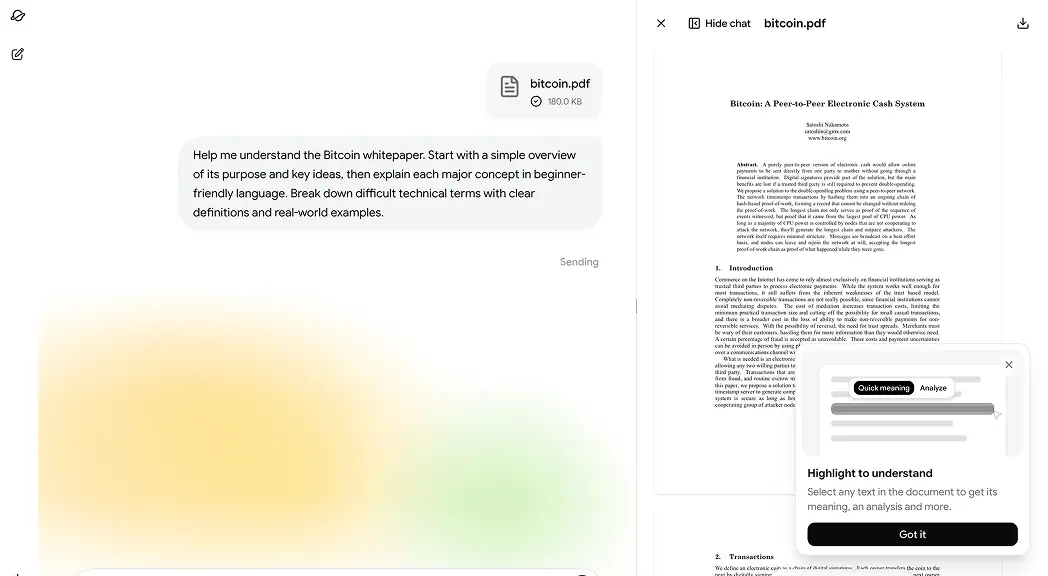
When a detail matters, read the relevant passage in the PDF itself.
Step 3: Ask Questions About the Document, Not Just for Another Summary
After reading the initial overview, continue asking questions in the same Luminary conversation. Move beyond “summarize this” by asking questions about:
- Purpose: What problem does this document attempt to solve?
- Evidence: Which passage, figure, or example supports its central claim?
- Assumptions: What does the argument depend on, and what is left unexplained?
- Implications: What changes if the claim is correct, and which questions remain open?
For example, ask Luminary this about the Bitcoin whitepaper:
Explain the double-spending problem described in the Introduction and Transactions sections. What solution does the paper propose, and which later sections explain how that solution is meant to work? Point me to the relevant passages.
This gets you closer to the argument and the sections supporting it. Use the same approach for a strategy report, technical specification, or research paper.
Step 4: Highlight a Passage You Don't Understand
Even a well-written summary can leave unfamiliar language unresolved. When that happens, it's often faster to investigate the exact passage than to ask the assistant to re-explain the whole document.
Select a term, sentence, or passage directly inside your PDF. A menu appears with Quick meaning, Analyze, and Copy.
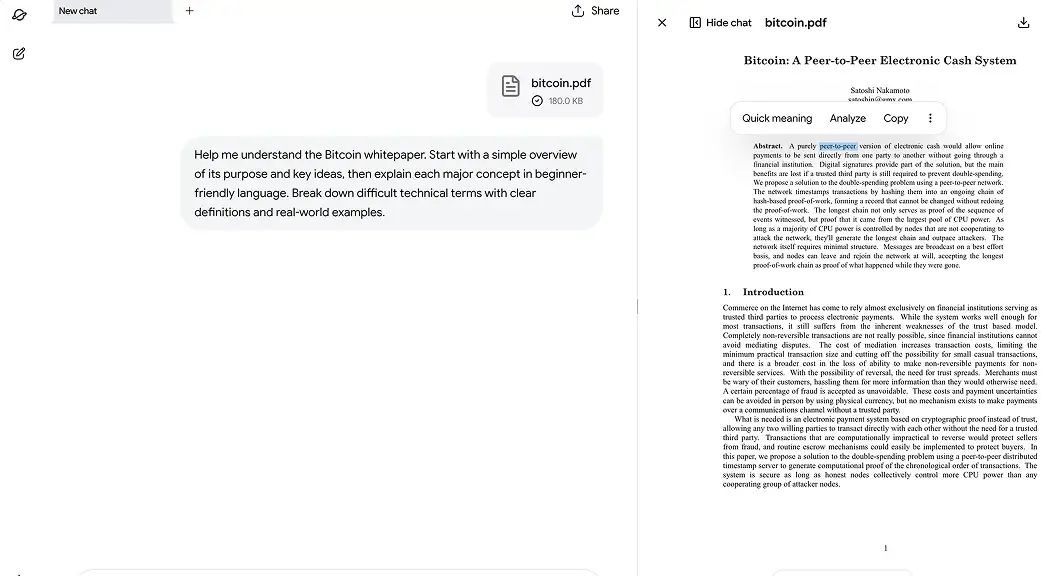
Choose Quick meaning when you need a short explanation without interrupting your reading. For example, highlight peer-to-peer in the whitepaper to see what the term means in that context while the page stays open.
Choose Analyze when the question needs more than a definition, such as how the term relates to the paper’s larger argument.
Step 5: Investigate the Concept Through Explanations, Videos, and Sources
A difficult passage may need more than a definition. You might want a concrete example, a visual explanation, or material from another source.
After selecting Analyze, use the tabs in the side panel to explore the highlighted concept: Explanation, Videos, Quiz, Sources, Related, and Map. You can switch between them while your original PDF stays available.
Start with Explanation to explore the selected passage in more detail. It helps you understand what the concept means, why it matters in the document, and how it connects to the surrounding ideas.
Open Videos for contextual explanations of the selected term, or switch to Sources to find related external websites. These are useful for additional context, especially when the paper assumes knowledge you don’t yet have.
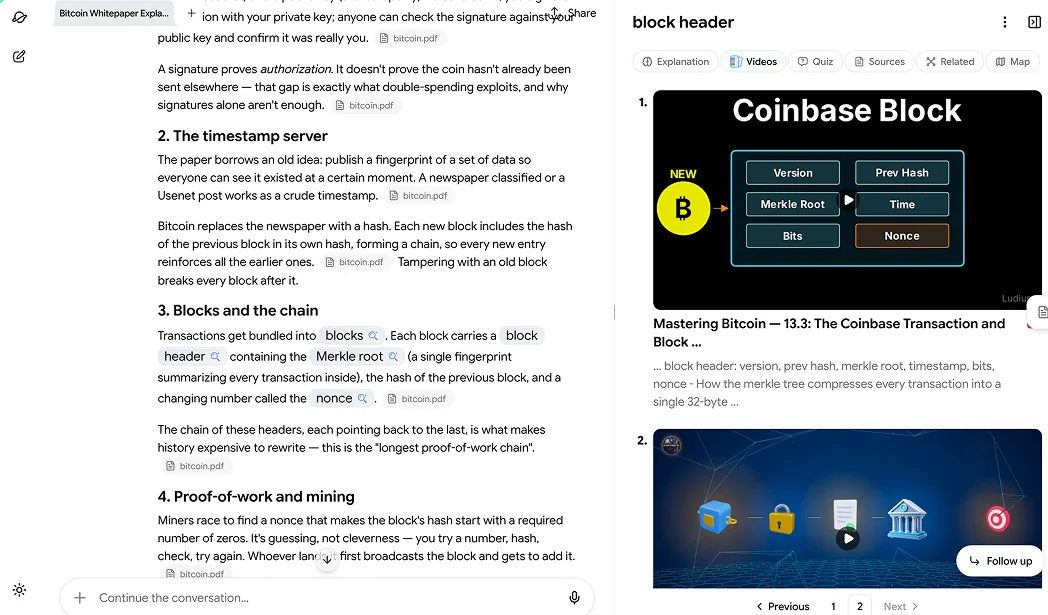
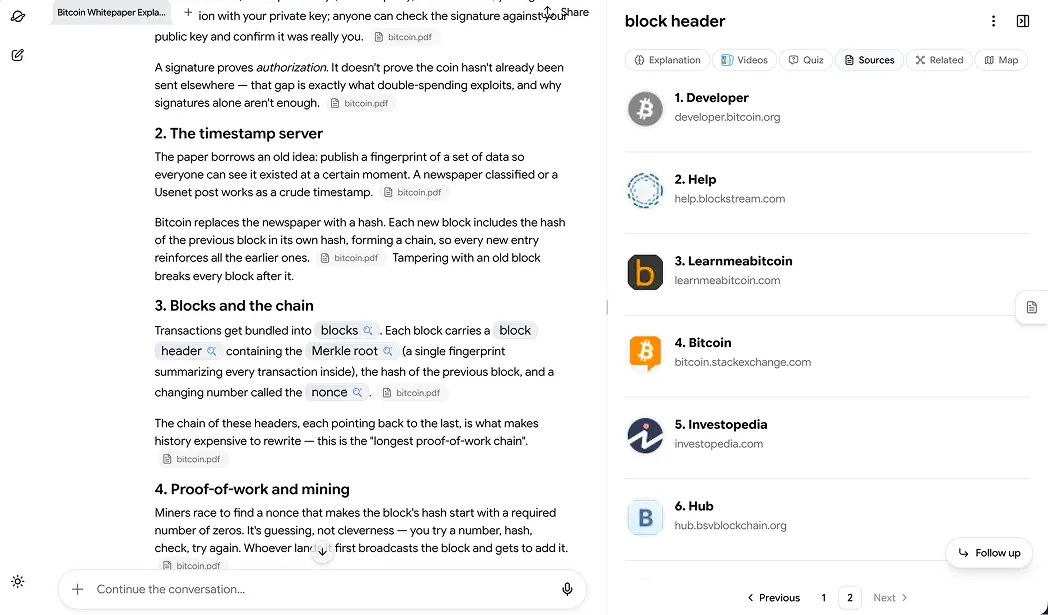
An important distinction: A source cited from the uploaded PDF supports what the file says. An external source can supply background, an alternative explanation, or more recent information.
If a source matters to your conclusion, open it and check the relevant section rather than relying on the source title alone.
Step 6: Check Your Understanding and Explore Related Ideas
Document analysis isn't always finished once you've found a passage. For complicated material, you may need to understand how multiple concepts fit together.
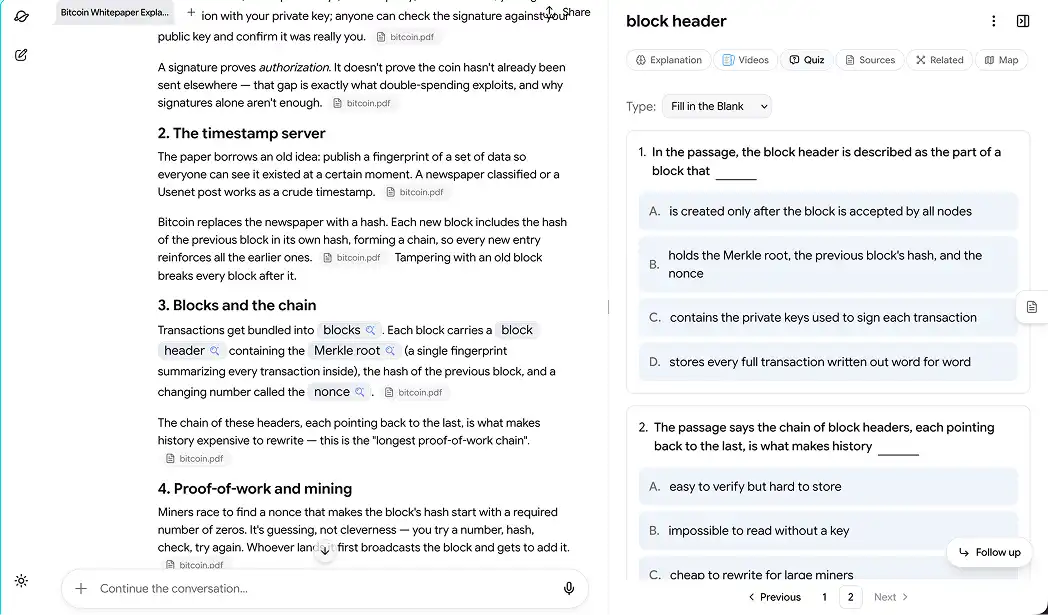
Open Quiz to test your understanding of the concept. For example, if you've highlighted a section about block headers, you can answer fill-in-the-blank, multiple-choice, or true/false questions and return to the passage whenever something isn't clear. This step is optional but particularly useful when working with unfamiliar technical material.
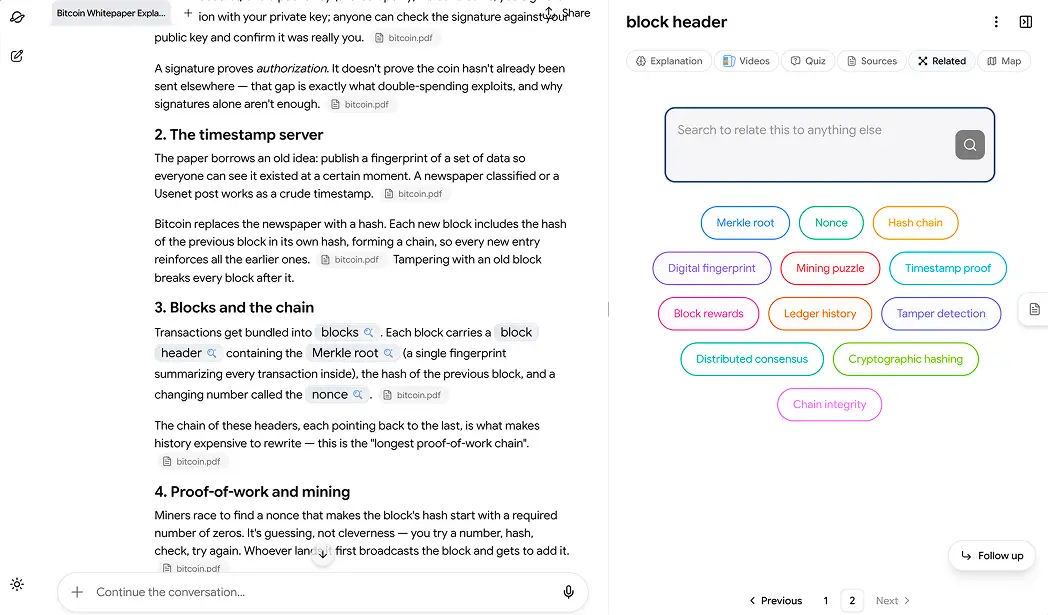
Use Related to discover connected terms worth investigating. When you want to see how those terms fit together, open Map. For a block header, the spatial map shows connections to the previous block hash, timestamp, nonce, and other components. You can switch between spatial and 2D views.
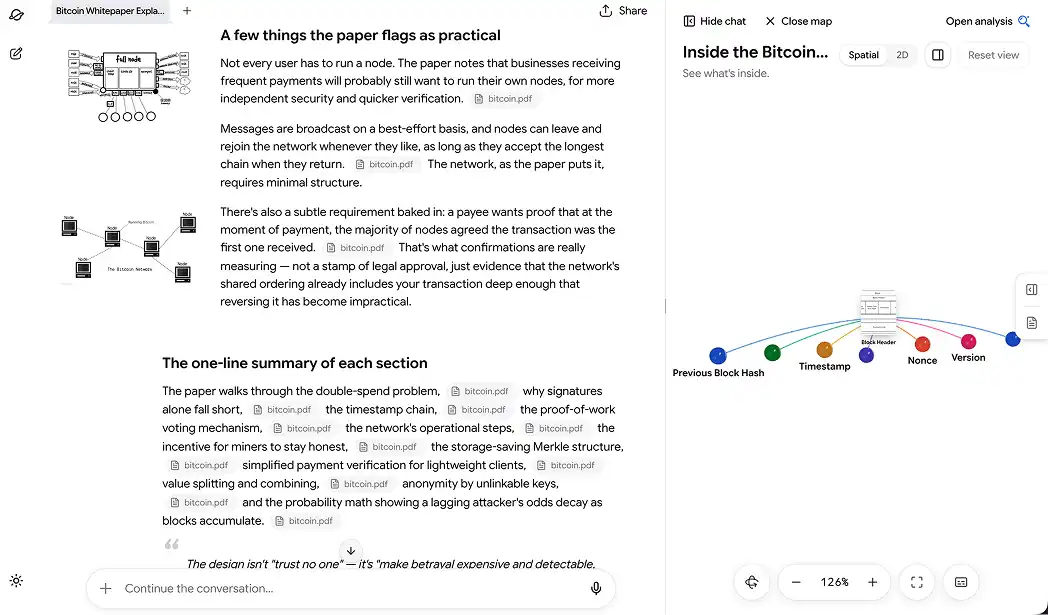
These views add context. If a concept map introduces a relationship you intend to cite, trace it back to the paper or another reliable source.
If you want to compare everything at once, keep the conversation, original PDF, and deeper explanation open in separate panels.
Step 7: Turn Verified Findings Into a Useful Output
Once you’ve reviewed the source passages and checked the important claims, ask Luminary to turn your findings into something you can use: a short report, a briefing, a comparison table, or a presentation.
You can continue in the same conversation to write and create PDF, Word, Excel, or PowerPoint files. Keep the distinction clear between statements supported by the uploaded document and explanations added for context.
Prompt to try:
Create a two-page briefing based on this PDF for someone new to Bitcoin. Explain the paper’s purpose, the problem it addresses, the proposed approach, and five essential concepts. Include relevant references to the uploaded document, label any outside explanations clearly, and flag claims that still need verification. Create a Word document.
Before sharing the output, verify its quotations, numbers, section references, and conclusions.
Document Analysis Prompts You Can Reuse
Clear questions usually matter more than elaborate prompt engineering. Adapt these to the document you have.
| Your goal | Prompt to use |
|---|---|
| Get oriented | “Give me a five-point overview of this document and the sections I should read first.” |
| Find evidence | “What evidence does the document give for [claim]? Identify the relevant passages and state what's missing.” |
| Explain a passage | “Explain this paragraph in plain English, then define its three most important technical terms.” |
| Compare sections | “How do the claims in the introduction compare with the findings in the conclusion?” |
| Extract details | “List every deadline and responsible party mentioned. Include where each item appears and flag anything ambiguous.” |
| Spot limitations | “Which assumptions, exceptions, or unanswered questions might affect this conclusion?” |
| Prepare a deliverable | “Turn the verified findings into a concise report with source references and clearly labeled uncertainties.” |
For financial statements, request the exact page and table for every number. For contracts, ask the assistant to quote or locate the relevant clause and have a qualified reviewer interpret any consequential obligations. For scientific papers, distinguish the authors' results from claims made in the discussion section.
 Luminary
Reading about AI study tools? Try the one actually built for students.
Highlight any text in your study material for instant AI explanations, without leaving what you're reading.
How to Check Whether an AI Document Analysis Is Accurate
A fluent answer can still misread a table, skip a qualification, or attribute a claim to the wrong section. A good AI document review includes a short verification pass.
- Check the cited passage. Does the original text support the wording of the answer, or has the AI made the claim stronger?
- Verify figures and units. Compare dates, percentages, currencies, table headings, and denominators directly with the file.
- Watch for missing qualifications. Look for words such as may, under these conditions, except, and estimated.
- Separate document claims from outside context. External information can be useful, but label it as such rather than attributing it to the uploaded file.
- Ask what is not in the document. A missing detail isn't permission to invent a plausible answer.
- Use a human review for consequential decisions. Legal, medical, financial, and safety-related interpretations need appropriate expert oversight.
Which AI Document Analysis Tool Should You Use?
AI document analysis tools serve different purposes, from understanding research papers to extracting information from business forms. Choose based on the document you're working with and what you need to accomplish.
| Need | What to look for |
|---|---|
| Understand a PDF while reading it | A document viewer, passage selection, contextual explanations, and source pointers |
| Summarize or discuss a file | Upload support, clear follow-up answers, and traceable references |
| Compare many papers or reports | Multi-document comparison and source-specific citations |
| Extract invoice or form fields at scale | Structured extraction, OCR, validation, and export or API features |
| Turn research into a deliverable | Writing, document creation, and an easy path from findings to finished output |
For interactive reading, you can use Luminary to keep your PDF open, ask follow-up questions, analyze selected passages, and explore related sources and concepts. Other general-purpose assistants, including ChatGPT and Claude, also support document conversations. For high-volume form extraction or OCR-heavy workflows, look for a dedicated processing system such as Google Cloud Document AI.
Common Mistakes to Avoid
- Asking for an explanation without a goal. “Analyze this” encourages a broad answer when you may actually need one number, a specific obligation, or an explanation of one section.
- Confusing a summary with evidence. A summary helps you orient yourself. It doesn't prove that the original document supports every interpretation.
- Treating external source suggestions as document citations. A related web page can add context, but only the actual uploaded material can establish what the document itself says.
- Uploading confidential files without reviewing the service's terms. Check data handling, retention, access permissions, and organizational rules before sharing sensitive documents.
- Publishing an AI-generated conclusion without checking it. Important findings need a quick comparison against the original source, especially when the document supports a business, legal, financial, or academic decision.
Conclusion
AI document analysis is most useful when it helps you move from reading to understanding and using information. Start with a clear question, keep the original document available, explore the passages that matter, and verify what you plan to rely on.
In Luminary, you can upload a PDF, read it beside the conversation, highlight passages for explanations or deeper analysis, and explore related sources, videos, and concepts. Once you’ve checked the findings, continue into writing or file creation without reducing the whole task to a one-time summary.
Have a report or PDF you've been putting off reading? Try Luminary for free to upload it, explore the important sections, and turn verified findings into something useful.
Frequently Asked Questions
AI document analysis uses AI to summarize, explain, extract, compare, or investigate information in files. It can help you find details, interpret passages, and organize findings, but important answers should still be checked against the original document.
Yes. Several AI services provide free AI document analysis or limited free tiers for working with PDFs. Luminary is currently completely free to use and supports document uploads, conversational questions, contextual passage analysis, and broader AI tasks. File support and usage limits differ between services.
Summarization condenses a document into its main ideas. Analysis asks more targeted questions, such as why an argument matters, which evidence supports a finding, or how two sections compare. Extraction focuses on specific details such as dates, numbers, or fields.
Yes. Many assistants can explain selected text if you provide the relevant passage. In Luminary, you can highlight text inside the PDF and choose Quick meaning for an immediate explanation or Analyze for deeper context, sources, videos, and related ideas.
It can help locate and explain information, but accuracy isn't guaranteed. Check consequential claims and exact wording against the file. For legal interpretation, financial decisions, or other high-stakes uses, have an appropriately qualified person review the findings.
Yes, some general-purpose AI platforms connect document analysis with writing and file creation. Luminary supports PDF, Word, Excel, and PowerPoint creation, so you can use verified findings from an uploaded document as the starting point for a report or presentation.
LuminaryThere’s always more to discover.
Start with anything. Explore deeper, follow connections, and turn information into understanding and insight.
Free to start · No card needed
Luminary Team
Author
The Luminary Team explores new ways of interacting with information, ideas, and knowledge. Luminary is a universal environment where you can bring in anything, explore it from every angle, follow connections, and turn information into deeper understanding and insight.
LuminaryStart with anything. Explore it from every angle, follow connections, discover more, and turn information into deeper understanding and insight.
- Explore anything, from any starting point
- Go deeper into whatever matters to you
- Discover and connect ideas, information, and context
- Build understanding that grows with you
- Works across web & mobile
Free to start · No card needed