
8 Best AI Productivity Tools for Everyday Work
The best AI productivity tools depend on the work you want to simplify. Luminary and ChatGPT help with research, writing, document analysis, and content creation. Microsoft Copilot supports work in Microsoft 365, Notion AI helps manage workspace information, and Grammarly improves everyday writing. For specialized tasks, Fireflies.ai handles meeting notes, Motion schedules work, and Zapier automates repetitive processes.
If you need one platform for research, writing, analyzing documents, and creating files, Luminary brings these capabilities together and is currently completely free to use.
A meeting ends with five action items, but you still have a report to finish, emails to answer, and yesterday's unfinished work waiting for you. An AI tool might help with all of that, but not necessarily the same tool.
Some AI productivity apps help you think, research, write, and create documents. Others capture meetings, reorganize calendars, or connect applications so repetitive work happens automatically. The useful question isn't which tool has the longest feature list. It's which part of your work it can actually take off your plate.
Here are eight AI productivity tools worth comparing, with practical examples, what each does well, and the limits to know before signing up.
The Best AI Productivity Tools at a Glance
| Tool | Best For | What You Get Done | Access |
|---|---|---|---|
| Luminary | Research, writing, and document creation | Research-backed reports, summaries, and downloadable files | Currently completely free |
| ChatGPT | Flexible knowledge and technical work | Drafts, data analysis, code, and project deliverables | Free access; paid plans |
| Microsoft Copilot | Working in Microsoft 365 | Emails, spreadsheets, documents, and slides within supported apps | Free standalone assistant; app features depend on plan |
| Notion AI | Workspace knowledge and team coordination | Project updates, searchable answers, notes, and database tasks | Limited AI trial; broader features on eligible plans |
| Grammarly | Clearer everyday writing | Polished emails, messages, and documents | Free tools; additional paid features |
| Fireflies.ai | Meeting capture and follow-up | Transcripts, summaries, decisions, and action items | Free plan with limits |
| Motion | Calendar planning and prioritization | Tasks scheduled around deadlines and available time | Free trial; paid plans |
| Zapier | Cross-app automation | Repetitive steps completed after defined triggers | Free plan with task limits |
Access and usage policies can change. Check the relevant product plan before choosing a tool.
What Makes an AI Tool Useful for Productivity?
An AI feature isn't automatically a time-saver. It needs to improve a step you repeat often, without creating more work to set up or check the result.
For this comparison, we considered five things: the work a tool helps finish, the quality of its documented features, how it fits into an existing workflow, what still requires human review, and the cost or usage limits involved.
There's also a useful difference between creating work and taking action. Many AI-powered productivity tools can draft a project update, but that doesn't mean they have permission to send it. A scheduling tool can move a task on your connected calendar. An automation platform can update records across apps when a trigger fires. Knowing which type you need prevents a lot of disappointing subscriptions.
8 Best AI Productivity Tools
1. Luminary: Best for Research, Writing, and Creating Useful Files
Best for: People who regularly move from questions and source material to reports, summaries, presentations, or other finished content.
Website: https://www.useluminary.ai/
A surprising amount of office work begins with figuring something out. You need to compare options, read a document, check current information, and explain what you've learned to someone else.
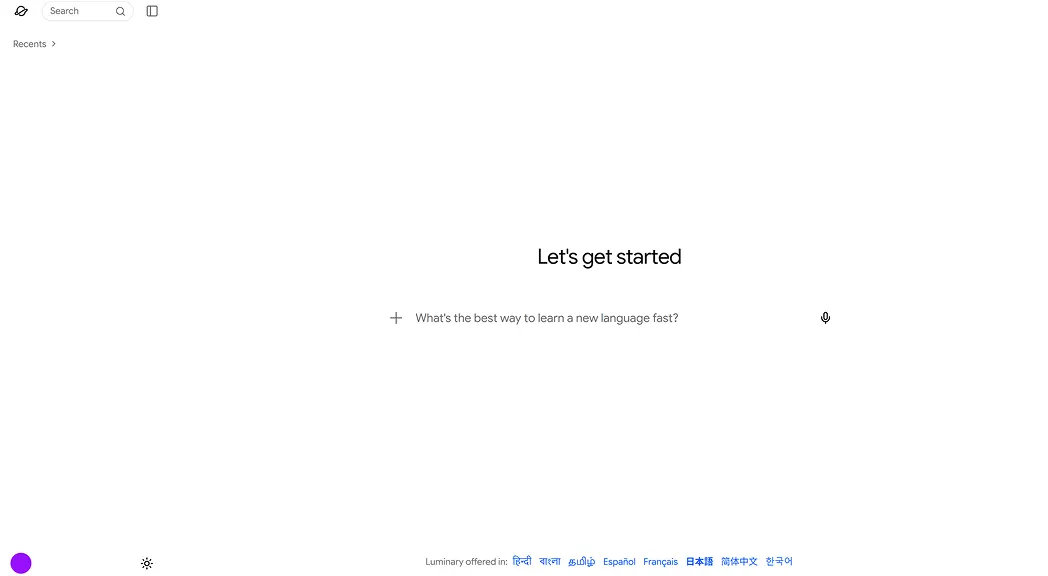
Luminary brings those steps together in a general-purpose AI platform. It supports everyday questions, real-time search, research, writing, brainstorming, document analysis, and content creation. You can also create PDF, Word, Excel, and PowerPoint files, rather than stopping at an answer in a chat.
Suppose you're preparing a weekly industry update. You could ask Luminary to research the week's developments, compare reporting from different sources, and organize the findings by what matters to your audience. If you have a PDF briefing, upload it and ask questions about particular sections. When the research is ready, use the material to prepare a structured report or presentation.
The way Luminary presents answers is helpful during that process. Responses can include comparisons, timelines, relevant images and videos, and supporting sources. If a claim or unfamiliar concept needs a closer look, Clickable Concepts and Highlight & Analyze let you investigate it in context. Conversation threads and 2D or 3D concept maps offer additional ways to follow related ideas.
What stands out:
- Real-time search, source-backed research, and everyday AI assistance.
- Writing, brainstorming, document analysis, and downloadable file creation.
- Structured answers with contextual visuals and direct passage-level exploration.
- Interactive charts, maps, and models when relevant to a response.
What to know: Luminary brings research, writing, document analysis, and content creation into one platform. If most of your work happens inside applications like Microsoft 365 or Notion, an assistant with native integrations into those tools may be a better fit for your workflow.
Access: Luminary is currently completely free to use.
2. ChatGPT: Best for Flexible Writing, Analysis, and Technical Work
Best for: People whose tasks change frequently, from drafting content to analyzing spreadsheets or solving technical problems.
Website: https://chatgpt.com/
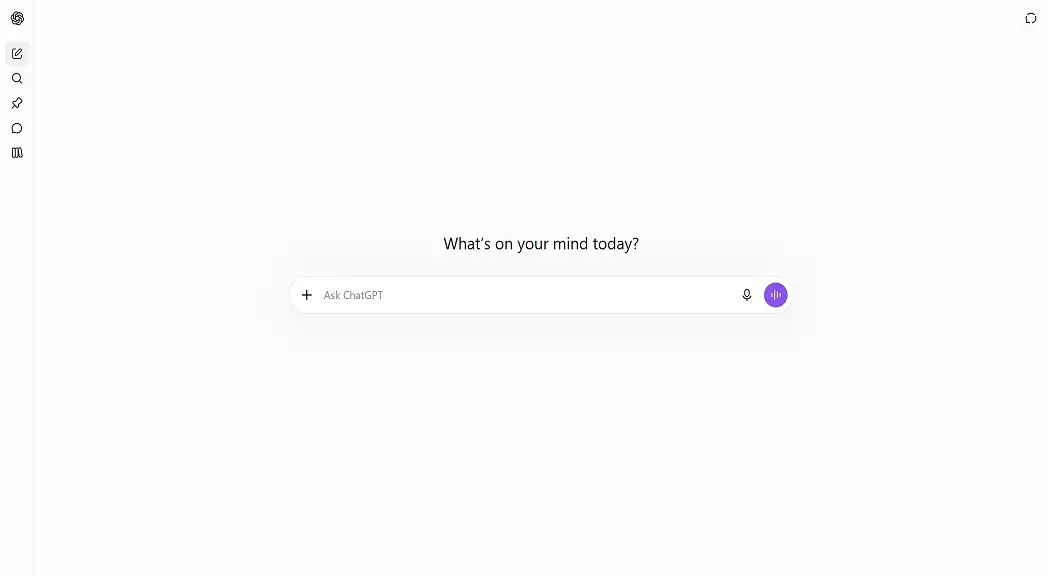
ChatGPT is a broad general-purpose assistant for writing, research, planning, coding, and working with information. It can also analyze uploaded files, help interpret data, create visuals, and build deliverables through supported workflows.
A practical example: A freelancer receives a spreadsheet of campaign results and needs a short client update. In ChatGPT, they can ask for trends in the data, identify questions worth investigating, and turn the findings into a clear summary. If the client asks for a different format, the work can continue in the same project.
The platform also provides web search, deeper research, voice interaction, project organization, and connected tools. Coding assistance is particularly relevant when productivity work involves scripts, data cleanup, or building software.
What stands out:
- Research, writing, coding, and spreadsheet or data analysis.
- File-based workflows and finished document or slide deliverables.
- Projects and connections to outside apps where supported.
What to know: Not every feature is available with the same limits on every plan. Connected actions require appropriate permissions, and important analyses still need checking. ChatGPT is versatile, but a specialist scheduling or meeting tool may be a better fit for those specific jobs.
Access: Free access is available, with additional features and capacity on paid plans.
3. Microsoft Copilot: Best for Work Already Happening in Microsoft 365
Best for: People who spend much of their day in Word, Excel, PowerPoint, Outlook, or Teams.
Website: https://copilot.microsoft.com/
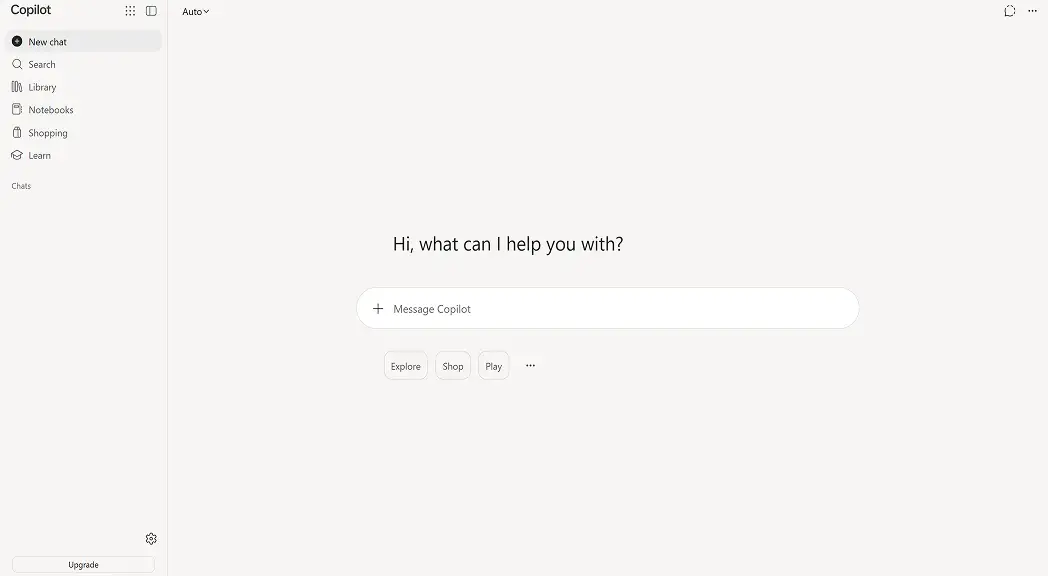
Microsoft Copilot's main productivity advantage is placement. With eligible Microsoft 365 access, AI assistance is available inside the applications people already use, rather than requiring them to move every document into a separate chat.
A practical example: You receive a long email thread about a project, need to update a proposal, and have to prepare a short presentation. Copilot can help summarize the thread in Outlook, revise material in Word, and support slide creation in PowerPoint, depending on your subscription and account setup. Excel features can also help with analysis and formulas.
Copilot is useful for connected workplace tasks, but it's important to distinguish the free standalone assistant from the Microsoft 365 features inside particular apps.
What stands out:
- Drafting and editing in Word and email assistance in Outlook.
- Spreadsheet analysis in Excel and presentation help in PowerPoint.
- Integration with supported Microsoft 365 information and workflows.
What to know: Availability varies by plan, organization, and application. Check the exact Copilot capabilities included with your account before treating every Microsoft 365 integration as available.
Access: The standalone assistant offers free access; in-app Microsoft 365 capabilities depend on eligibility and subscription.
4. Notion AI: Best for Turning Workspace Knowledge Into Action
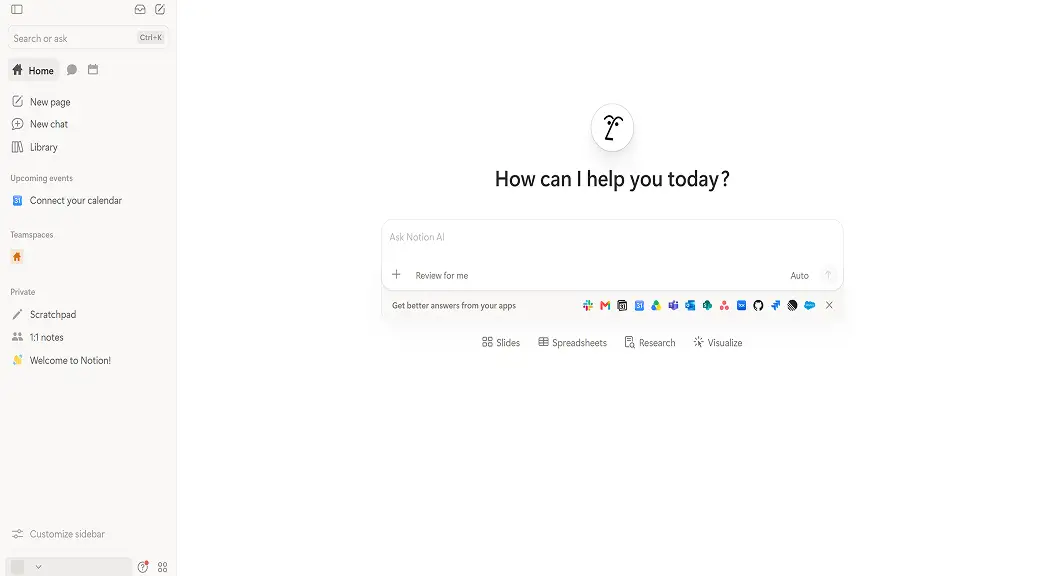
Best for: Teams that keep projects, documentation, meeting notes, and task databases in Notion.
Website: https://www.notion.com/product/ai
When project information lives in dozens of notes and databases, finding the right context can take longer than the task itself. Notion AI works within the Notion workspace to help people search, draft, summarize, and manage information.
A practical example: Before a weekly project review, a manager needs to know which tasks are blocked and what changed since the last update. Notion AI can use permitted workspace context to help answer questions, create a summary, and update relevant pages or databases through supported agent workflows.
Notion has moved well beyond simple AI writing assistance. Its current tools include workspace and connected-app search, agents, AI Meeting Notes, Research Mode, and support for working with or creating files. Some of these capabilities require particular plans, credits, or connected services.
What stands out:
- Search and answers grounded in accessible workspace and connected-app information.
- AI assistance inside pages, databases, and project documentation.
- Agent workflows, meeting notes, and research features on supported plans.
What to know: Notion AI is most valuable when your work already lives in Notion or you intend to move it there. Permissions, connectors, AI credits, and plan limits affect what the assistant can do. It isn't fair to compare its entire paid workspace experience with a standalone free chatbot.
Access: Notion offers limited AI trials; ongoing advanced AI capabilities depend on eligible plans and usage allowances.
5. Grammarly: Best for Improving Writing Where You Work
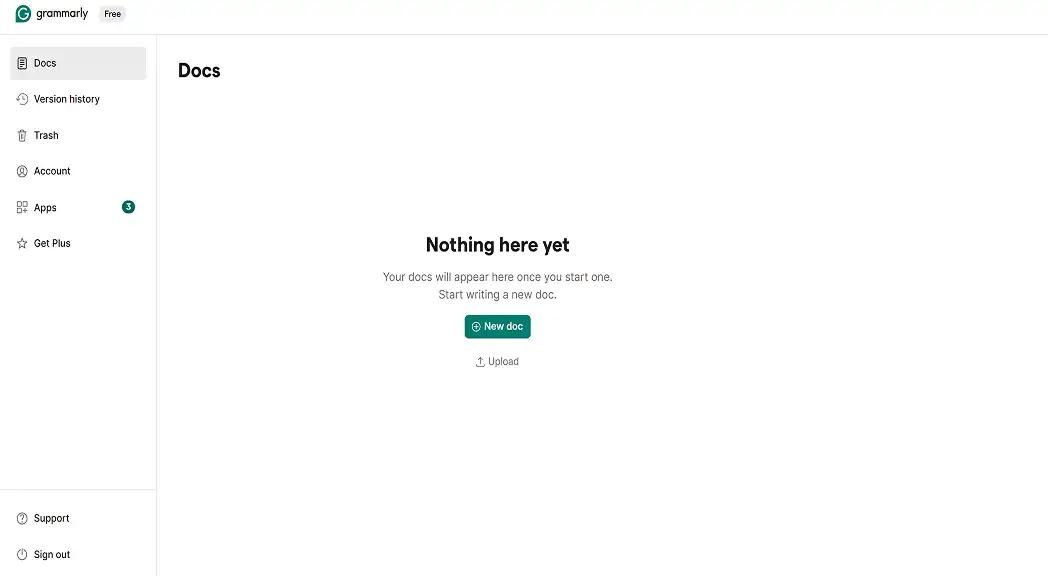
Best for: Anyone who spends the day composing emails, documents, messages, or client-facing copy.
Website: https://www.grammarly.com/ai-writing-assistant
Sometimes the productivity problem isn't creating a document from scratch. It's the time spent rereading a message, shortening a paragraph, or changing a sentence so it sounds right for the reader.
Grammarly focuses on that last-mile work. Its writing assistant helps with spelling, grammar, clarity, tone, rewriting, and generating ideas or drafts. It works in many of the places people already write, making it useful for frequent small edits.
A practical example: You've drafted a client email that explains a delay but sounds defensive. Grammarly can suggest clearer wording and adjust the tone without asking you to rebuild the message in a separate document.
What stands out:
- Grammar, clarity, and tone suggestions during everyday writing.
- Rewriting for length, formality, and audience.
- Generative writing and style guidance with features varying by plan.
What to know: Grammarly's suggestions can improve clarity, but they may occasionally change the intended meaning or tone. Review important edits before accepting them, particularly in professional or technical writing.
Access: Free writing assistance is available; more advanced features are offered on paid plans.
6. Fireflies.ai: Best for Meeting Notes and Follow-Ups
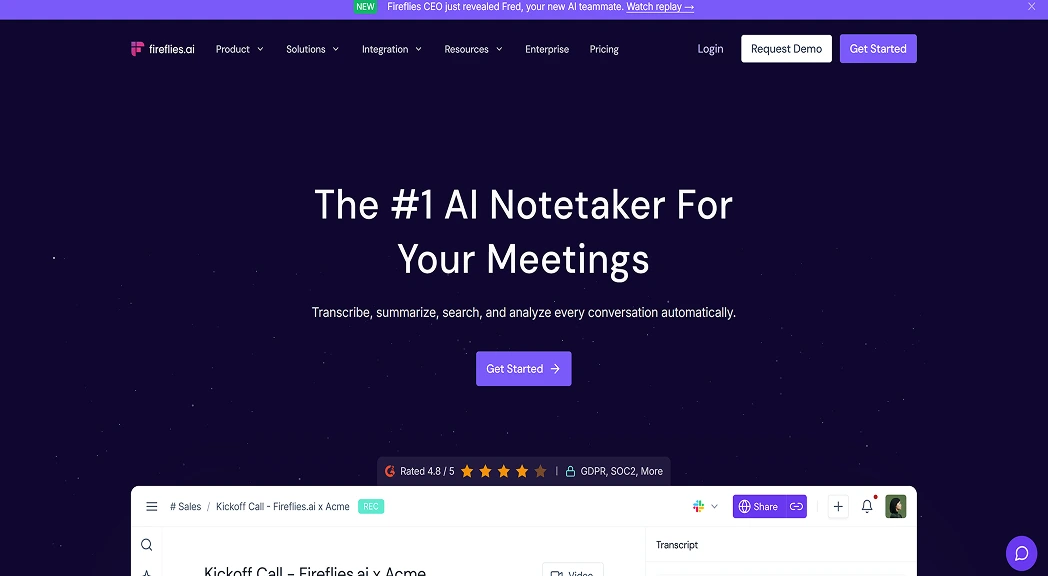
Best for: People with frequent calls who need searchable records of decisions and action items.
Website: https://fireflies.ai/notetaker
A useful meeting can still create extra work if someone has to write the summary, list next steps, and remember who agreed to what. Fireflies specializes in capturing and organizing that information.
It can record or transcribe supported meetings, produce summaries, identify decisions and action items, and make transcripts searchable. Capture methods include meeting bots, a browser extension, desktop and mobile apps, and uploaded recordings.
A practical example: After a client call, you open the meeting record to find the requested changes, deadlines, and follow-up questions. Instead of replaying the full conversation, you review the summary and confirm important details against the transcript before sharing them.
What stands out:
- Meeting transcripts, summaries, decisions, and action items.
- Search across past meetings and options to ask questions about recordings.
- Integrations and export options for moving notes into other workflows.
What to know: Recording rules and participant consent matter. Transcriptions can mishear names or commitments, so action items should be checked. AskFred and other AI features may use credits or require higher plans.
Access: A free plan is available with limits on storage, summaries, and certain features.
7. Motion: Best for Automatically Planning Your Calendar
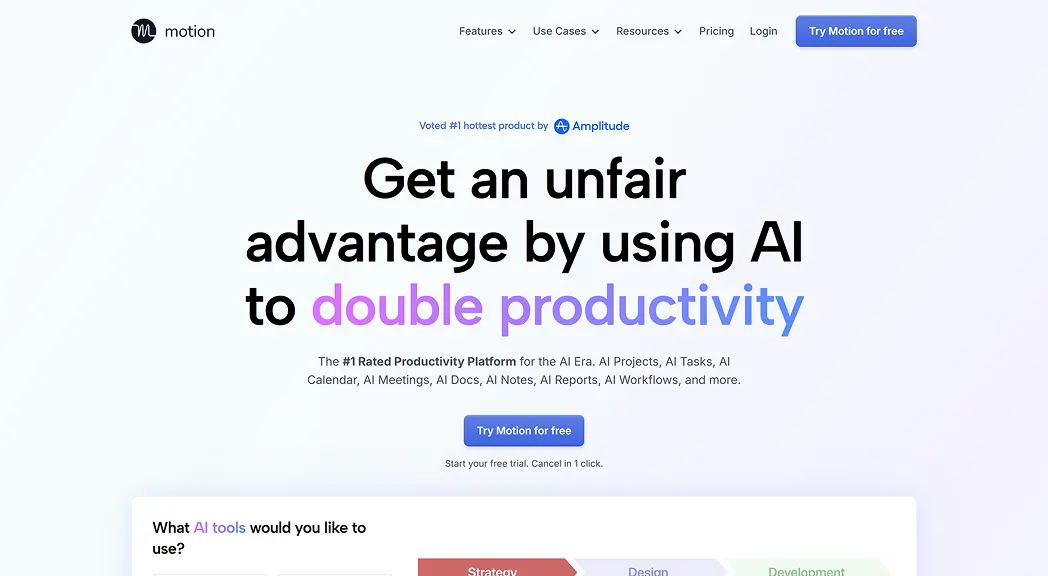
Best for: People who have plenty of tasks but struggle to fit them around meetings and deadlines.
Website: https://www.usemotion.com/
A to-do list tells you what needs doing. It doesn't necessarily tell you when you'll have time. Motion's core strength is automatic scheduling: it places tasks into available calendar time based on duration, priorities, deadlines, and existing events.
A practical example: You need two hours to finish a proposal, but your afternoon is filled with meetings. Motion can shift task blocks into other available slots and warn you when deadlines are at risk. The result is a schedule that adapts instead of a static list you must rearrange manually.
Motion also offers project management, AI chat, documents, and meeting-related features, so it shouldn't be described as only a calendar widget. Its distinguishing capability remains coordinating work against available time.
What stands out:
- Automatic task scheduling and reprioritization.
- Calendar and project visibility, with deadline-risk alerts.
- Task management informed by capacity, duration, and availability.
What to know: Motion needs accurate task estimates, deadlines, and calendar information to produce a useful schedule. It can plan when you work, but it doesn't remove the need to perform or review the work itself.
Access: Motion offers a free trial, followed by paid plans.
8. Zapier: Best for Automating Repetitive Steps Across Apps
Best for: People who repeatedly copy data, send notifications, or move information between different services.
Website: https://zapier.com/
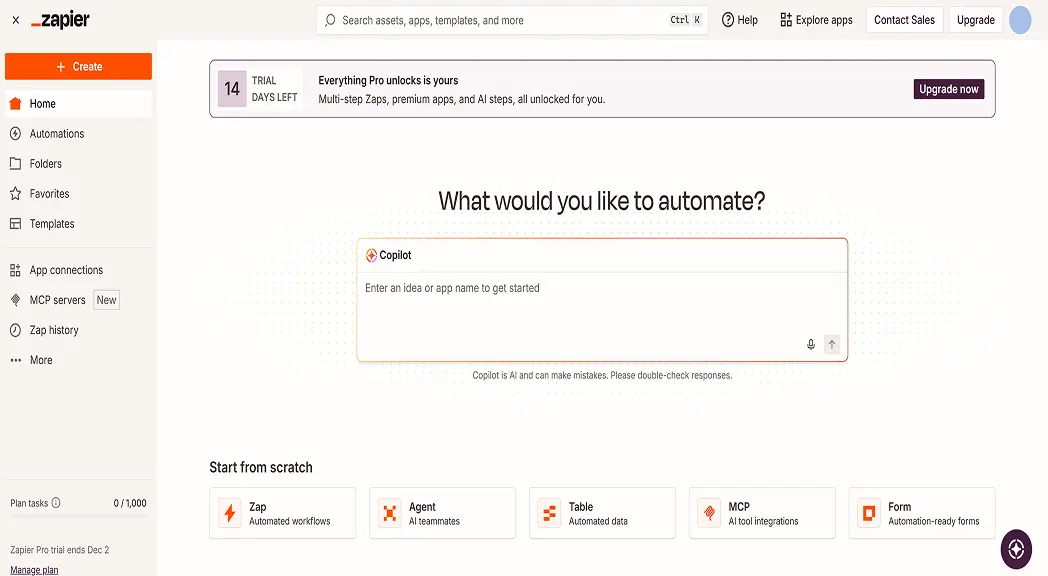
Many small tasks take only a minute. The problem is doing them dozens of times. Zapier lets users build workflows that run when something happens in one app and then carry out actions in another.
A practical example: A new inquiry arrives through a form. Zapier can add it to a spreadsheet or customer system and notify the appropriate teammate, assuming those applications and actions are connected and authorized. You define the trigger, actions, and conditions rather than relying on an AI chat to remember the process.
Zapier also offers AI steps and a Copilot assistant that can help build and revise workflows from natural-language instructions. Its free plan is a useful starting point for basic automations, while more involved flows require checking plan and task allowances.
What stands out:
- Trigger-and-action workflows across connected applications.
- AI-supported workflow building and content or data handling.
- Options for more complex automation as needs grow.
What to know: Automations need setup, permissions, and testing. A badly configured workflow can repeat a mistake at scale. Plan limits, task usage, and app support should be checked before relying on automation for important work.
Access: A free plan is available with a monthly task allowance; paid plans expand capabilities.
 Luminary
Reading about AI study tools? Try the one actually built for students.
Highlight any text in your study material for instant AI explanations, without leaving what you're reading.
Three Workflows That Show Where These Tools Actually Help
The biggest productivity gains often come from getting one repeated workflow right, not adopting eight new apps. These examples show how to choose only the capabilities you need.
Workflow 1: Research a Topic and Deliver a Report
Use: A general-purpose assistant such as Luminary or ChatGPT.
- Start with the question your report needs to answer and the audience it's for.
- Research current information, inspect sources, and upload any relevant documents.
- Ask for a structured outline and identify claims that still need verification.
- Draft the report, review the facts, and create the output file.
Prompt to try: "Research the main developments in [topic] over the past month. Separate verified developments from predictions, include primary sources, and create a two-page report for [audience] with three practical takeaways."
Luminary is relevant here because the work can move from source-backed research and passage analysis to writing and file creation. If your task requires advanced coding or working with a connected business app, compare the available capabilities of ChatGPT and other tools as well.
Workflow 2: Turn a Meeting Into a Realistic Work Plan
Use: Fireflies.ai for meeting notes and Motion for scheduling, if both are appropriate for your setup.
- Record or transcribe the meeting with participant permission.
- Review the summary and confirm owners, deadlines, and decisions.
- Add the resulting tasks to your planning system, manually or through a supported integration.
- Let Motion schedule those tasks around your calendar, then review the plan.
This is one situation where a general-purpose chat alone may not be enough. Writing a task list and actually placing tasks on a connected calendar are different actions.
Workflow 3: Stop Manually Routing the Same Requests
Use: Zapier, with the applications you already rely on.
- Pick a repetitive event, such as receiving a completed intake form.
- Define where the information should go and who needs a notification.
- Build the trigger and actions using the supported connectors.
- Test with sample data, check permissions, and monitor the first runs.
Start with a small workflow you can verify. Automating a broken process only makes the mistakes happen faster.
When Is One AI Assistant Enough?
You probably don't need a separate tool for every step of every project.
If most of your work involves researching topics, drafting content, analyzing documents, comparing options, and creating files, a broad assistant such as Luminary or ChatGPT could cover much of it. Start there before paying for overlapping subscriptions.
A specialist becomes more useful when the task requires a specific action: recording meetings, making suggestions inside the app where you type, arranging tasks on a connected calendar, searching a particular team's workspace, or moving information automatically between services. If you mainly need a broad assistant rather than specialized software, our comparison of AI personal assistants covers that choice in more detail.
The practical distinction is simple: an AI-generated plan isn't the same as an updated calendar, and a summarized meeting isn't the same as a task assigned to someone. Check whether the tool completes the step you actually need, not just describes how to do it.
How to Choose Without Adding Another Complicated Workflow
Before subscribing, run one realistic test using work you already need to do.
- Start with a recurring problem. “I spend too long polishing email replies” is easier to solve than “I want to be more productive.”
- Define a finished output. A checked report, a clear email, a searchable meeting summary, or an updated schedule is easier to evaluate than a feature list.
- Count the steps, including review. A fast draft that requires extensive fact-checking may not save much time.
- Check access and privacy. Review file permissions, meeting consent, connected apps, usage caps, and how information is handled.
- Keep the tools that earn a place. If two apps do the same job, use the one that fits your workflow with less friction.
Don't judge an assistant only by how impressive its first answer looks. Ask what you can actually finish with it and what still needs to happen afterward.
Conclusion
The best AI productivity tools solve different problems. Luminary and ChatGPT help with broad knowledge work. Microsoft Copilot and Notion AI bring assistance into existing workspaces. Grammarly improves day-to-day writing, Fireflies makes meetings easier to revisit, Motion organizes available time, and Zapier automates repeated actions between apps.
For work that begins with a question and ends with a document, Luminary combines real-time research, writing, document analysis, and file creation in one general-purpose platform. Its sources, structured answers, and interactive features also make it easier to investigate the information behind the finished work.
Ready to turn research into something useful? Try Luminary for free to write, analyze documents, and create reports or presentations in one place.
Frequently Asked Questions
The best choice depends on the task. Luminary and ChatGPT are relevant for research, writing, and content creation. Microsoft Copilot helps inside supported Microsoft 365 apps; Notion AI works with workspace information; Grammarly improves writing; Fireflies.ai handles meeting notes; Motion schedules tasks; and Zapier automates workflows across connected apps.
Luminary is currently completely free to use. ChatGPT, Grammarly, Fireflies.ai, and Zapier offer free access with different limits. Microsoft Copilot has a free standalone assistant, while Notion offers limited AI trials. Motion offers a free trial rather than a permanent free plan. Check current terms before signing up.
Yes. Luminary can help research a subject, analyze documents, draft content, and generate PDF, Word, Excel, and PowerPoint files. ChatGPT and eligible Microsoft Copilot and Notion AI workflows can also help produce documents and presentations. Review the output before sharing it.
Some can. Motion is designed to place tasks into available calendar time and adjust the plan as priorities change. A general-purpose AI assistant can suggest a schedule, but it won't necessarily change an external calendar unless the relevant connection and action are supported.
Sometimes. If your work centers on research, writing, document analysis, and content creation, a general-purpose platform like Luminary can cover many tasks. You may still need specialized tools for meeting capture, automatic scheduling, or cross-app automation.
They can, especially for repeatable research, drafting, scheduling, and administrative tasks. But results depend on the setup and the amount of checking required. Compare the complete time to finish a real task, not only the speed of the first AI response.
LuminaryThere’s always more to discover.
Start with anything. Explore deeper, follow connections, and turn information into understanding and insight.
Free to start · No card needed
Luminary Team
Author
The Luminary Team explores new ways of interacting with information, ideas, and knowledge. Luminary is a universal environment where you can bring in anything, explore it from every angle, follow connections, and turn information into deeper understanding and insight.
LuminaryStart with anything. Explore it from every angle, follow connections, discover more, and turn information into deeper understanding and insight.
- Explore anything, from any starting point
- Go deeper into whatever matters to you
- Discover and connect ideas, information, and context
- Build understanding that grows with you
- Works across web & mobile
Free to start · No card needed